
المجلة · IOT والأنظمة الذكية
أرسل بيانات مستشعر الضوء إلى Azure Storage

يوضح هذا البرنامج التعليمي كيفية إرسال البيانات من مستشعر الضوء إلى تخزين Azure باستخدام تطبيق Node.JS. الأشياء المستخدمة في هذا المشروع: مكونات الأجهزة LattePanda 2 جيجابايت / 32 جيجابايت (غير نشط) × 1 تطبيقات البرامج والخدمات…
يوضح هذا البرنامج التعليمي كيفية إرسال البيانات من مستشعر الضوء إلى تخزين Azure باستخدام تطبيق Node.JS.
الأشياء المستخدمة في هذا المشروع:
مكونات الأجهزة
- LattePanda 2 جيجابايت / 32 جيجابايت (غير نشط) × 1
- تطبيقات البرامج والخدمات عبر الإنترنت
- رافع بيانات أزور
ما هو تخزين Azure:
Azure Storage هو حل التخزين السحابي للتطبيقات الحديثة التي تعتمد على المتانة والتوافر وقابلية التوسع لتلبية احتياجات عملائها. يمكن تخزين Azure Storage بشكل كبير ، لذا يمكنك تخزين ومعالجة مئات تيرابايت من البيانات لدعم الحجم الكبير
سيناريوهات البيانات التي يتطلبها التحليل العلمي والمالي وتطبيقات الوسائط. أو يمكنك تخزين كميات صغيرة من البيانات المطلوبة لموقع ويب للأعمال الصغيرة.
تتضمن هذه العملية متعددة الخطوات:
- جهز بيئة التطوير الخاصة بك
- تكوين تخزين Azure
- شغّل العينة وأرسل بيانات مستشعر الضوء إلى Azure Storage.
- جهز بيئة التطوير الخاصة بك تكوين تخزين Azure قم بتشغيل العينة وأرسل بيانات مستشعر الضوء إلى تخزين Azure.
3 خطوات لتشغيل تطبيق Azure IoT Hub على LattePanda.
الخطوة 1: المتطلبات الأساسية
الخطوة 2: قم بإعداد الجهاز
الخطوة 3: إنشاء العينة وتشغيلها
الخطوة 1: المتطلبات الأساسية
يجب أن تكون العناصر التالية جاهزة قبل بدء العملية:
تم تثبيت جهاز كمبيوتر مع عميل Git والوصول إلى مستودع GitHub العام لـ azure-iot-sdks.
جهز بيئة التطوير الخاصة بك.
إذا لم يكن لديك حساب تخزين ، فاتبع إعداد Azure Storage لإعداد واحد.
قم بإعداد Arduino (وهو مثبت مسبقًا ، إلا إذا قمت بتغيير برنامج Arduino)

الخطوة 2: إعداد الجهاز:
أدخل مستشعر الضوء في دبوس تناظري LattePanda A0 ، يجب أن يبدو الإعداد النهائي على النحو التالي:
الخطوة 3: إنشاء العينة وتشغيلها:
أنشئ ملف app.js وانسخ الكود التالي إليه. تأكد من إدخال قيم صالحة لـ accountName accountKey و arduinoPort. يمكنك أيضًا تغيير tableName. ضع الملف في المجلد الذي تختاره على LattePanda
var azure = require('azure-storage');
var five = require('johnny-five');
var accountName = ''; // Enter your Azure storage account name
var accountKey = ''; // Enter your Azure storage account key
var tableName = 'MyLightSensorData'; // Name of your table to store the light sensor data
var arduinoPort = 'COM3';// Enter your Arduino Port
var tableService = azure.createTableService(accountName, accountKey);
if (CreateTable()) {
InitializeBoard();
}
// Create a table in Azure storage
function CreateTable() {
tableService.createTableIfNotExists(tableName, function (error, result, response) {
if (error) {
console.log(error);
return false;
}
});
return true;
}
// Initialize the Arduino board with Johnny-Five
function InitializeBoard() {
var board = new five.Board({ port: arduinoPort });
board.on('ready', function () {
lightSensor = new five.Sensor({
pin: "A0",
freq: 10000 // 10 seconds
});
lightSensor.on('change', function () {
InsertValue(this.value);
});
});
}
function InsertValue(value) {
console.log('Value to insert: ' + value);
// Create entity to store in the table with the value
// of the light sensor and the date.
var entGen = azure.TableUtilities.entityGenerator;
var entity = {
PartitionKey: entGen.String('Light'),
RowKey: entGen.String(String(Date.now())),
intValue: entGen.Int32(value),
dateValue: entGen.DateTime(new Date().toISOString()),
};
// Insert the entity in the Azure storage table
tableService.insertEntity(tableName, entity, function (error, result, response) {
if (error) {
console.log(error);
}
});
}
افتح shell جديد أو موجه أوامر Node.js وانتقل إلى المجلد حيث قمت بوضع ملفات العينة. قم بتثبيت مكتبات azure و johnny-five باستخدام الأوامر التالية:
نبم تثبيت أزور
npm تثبيت جوني خمسة
قم بتشغيل تطبيق العينة باستخدام الأوامر التالية ، كل 10 ثوانٍ ، سيرسل الرمز قيمة مستشعر الضوء إلى الجدول المحدد.
العقدة app.js
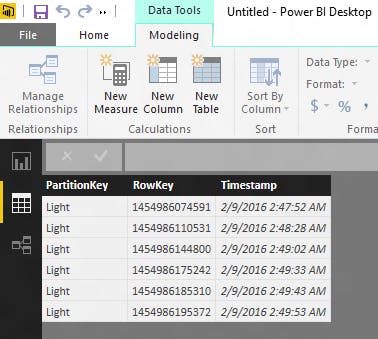
يمكنك بعد ذلك عرض البيانات التي يتم إرسالها إلى تخزين Azure باستخدام Power BI. في Power BI ، انقر فوق الزر Get Data ، وحدد "Microsoft Azure Table Storage" كمصدر لك ، ثم اتبع الخطوات للاتصال. بمجرد الاتصال ، يمكنك تحديد الجدول الخاص بك وعرض بيانات مستشعر الضوء التي تم إرسالها من LattePanda.
الشفرة
sampleC / C ++:
var azure = require('azure-storage');
var five = require('johnny-five');
var accountName = ''; // Enter your Azure storage account name
var accountKey = ''; // Enter your Azure storage account key
var tableName = 'MyLightSensorData'; // Name of your table to store the light sensor data
var arduinoPort = 'COM3';// Enter your Arduino Port
var tableService = azure.createTableService(accountName, accountKey);
if (CreateTable()) {
InitializeBoard();
}
// Create a table in Azure storage
function CreateTable() {
tableService.createTableIfNotExists(tableName, function (error, result, response) {
if (error) {
console.log(error);
return false;
}
});
return true;
}
// Initialize the Arduino board with Johnny-Five
function InitializeBoard() {
var board = new five.Board({ port: arduinoPort });
board.on('ready', function () {
lightSensor = new five.Sensor({
pin: "A0",
freq: 10000 // 10 seconds
});
lightSensor.on('change', function () {
InsertValue(this.value);
});
});
}
function InsertValue(value) {
console.log('Value to insert: ' + value);
// Create entity to store in the table with the value
// of the light sensor and the date.
var entGen = azure.TableUtilities.entityGenerator;
var entity = {
PartitionKey: entGen.String('Light'),
RowKey: entGen.String(String(Date.now())),
intValue: entGen.Int32(value),
dateValue: entGen.DateTime(new Date().toISOString()),
};
// Insert the entity in the Azure storage table
tableService.insertEntity(tableName, entity, function (error, result, response) {
if (error) {
console.log(error);
}
});
}
التعليقات
لا توجد تعليقات بعد. كن أول من يشارك رأيه.